# Configure external Google login
Integrating Google sign-in into your web application allows users to authenticate using their Google accounts.
#### 1. Access Google Cloud Console
- Go to the [Google Cloud Console](https://console.cloud.google.com/).
- Log in with your Google account.
- Select or create a new project for the Google login functionality.
#### 2. Configure the OAuth Consent Screen
- Navigate to **APIs & Services > Credentials**.
- Click on **CONFIGURE CONSENT SCREEN**.
- Select **External** for the User Type and click **Create**.
- Fill in the required fields on the OAuth consent screen tab:
- **App name**: "WeSolve"
- **User support email**: Choose an email for user support queries.
- **Developer contact information**: Provide your contact email.
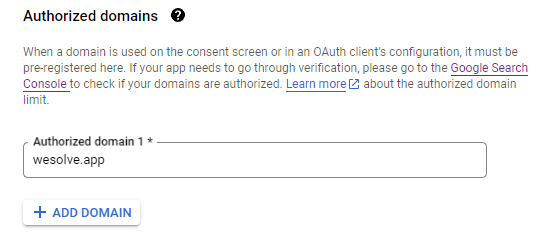
- Add your web app's domain to the **Authorized domains** section (e.g., `yourdomain.com`).
[](https://support.wesolve.app/uploads/images/gallery/2024-02/image-1707593824758.png)
#### 3. Add Scopes for the OAuth 2.0 Credentials
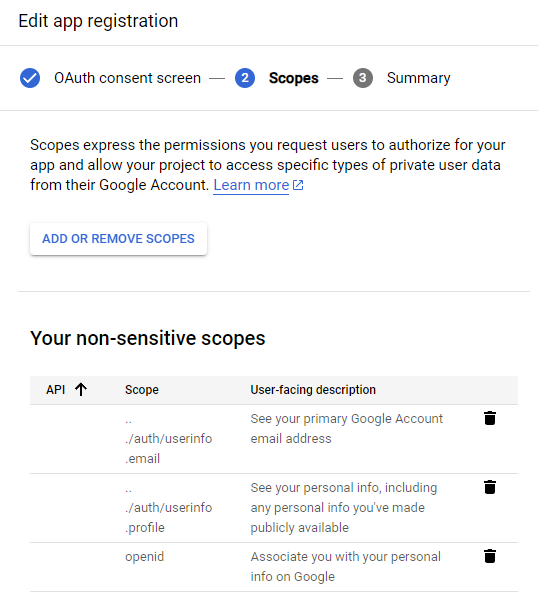
- Specify the scopes your application will need: `openid`, `email`, and `profile`.
- These scopes enable access to the user's ID, email, and basic profile info.
[](https://support.wesolve.app/uploads/images/gallery/2024-02/image-1707593844079.png)
#### 4. Create OAuth 2.0 Credentials
- From the **Credentials** page, click **Create Credentials** > **OAuth client ID**.
- Select **Web application** as the application type.
- Under **Authorized JavaScript origins**, add your web app's base URL (e.g., `https://yourdomain.com`).
- In **Authorized redirect URIs**, add the URI for redirecting after authentication (e.g., `https://yourdomain.com/account/login`).
- Click **Create** to receive your client ID and client secret.
#### 5. Setup WeSolve Google login configuration
- Locate and select **Administration** from the left-side menu and select **Settings** to open the settings page.
- Locate and select **External Login Settings** from the tabs menu.
- Locate **Google** and check the box **Enable** to enable Google authentication.
- Configure Google Parameters:
- **Client ID**: Enter the Client ID obtained in step 4.
- **Client Secret**: Enter the Client Secret obtained in step 4.
- **User Info Endpoint**: Specify the URL for retrieving user information from Google APIs. We raccomend to use `https://www.googleapis.com/oauth2/v1/userinfo?alt=json`